
UX Design Glossary: Interface Navigation
UX Design Glossary: Interface Navigation The new collection of terms for UX Design Glossary, this time focused on a variety of interface navigation elements: buttons, menus, switches etc.
One of the basic features of product usability is thoughtfully created navigation. It doesn’t matter if the visual performance is creative, stylish, original, catchy, and so on and so forth, in case the users don’t know where they are and how they could reach their goals with the website or app. Whatever the reason is that brings users to your digital product, the high level of respecting them means letting them know what is going on, and where they are going at every step of interaction with it. Earlier we have already published the Glossary posts with key terms for the topics of usability and web design as well as business terms and abbreviations. This time the perspective will get focused on navigation aspect: let’s check out what parts and elements of the interface are responsible for this vital issue.
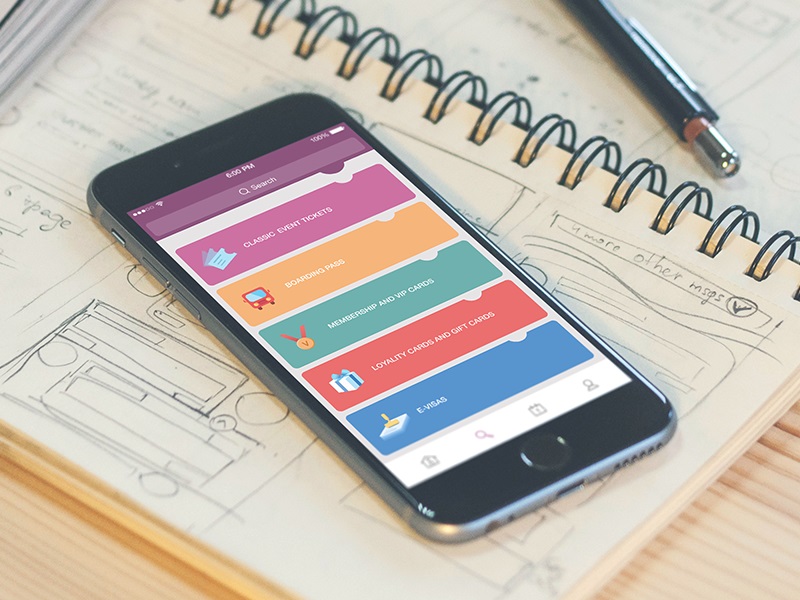
Navigation Design: Menu for PassFold app
Navigation
In its basic sense, the word navigation refers to the field of human activity that enables a vehicle to move from one place to another and controls and supports this process. According to etymology dictionary, the term has deep roots and comes from the Latin word navigare “to sail, sail over, go by sea, steer a ship,” which in its turn is based on two words: navis“ship” and agere“to set in motion, drive, drive forward”. So, to navigate is to make it possible for someone or something to cover the planned route. This is the foundation from which the numerous meanings of this word took the start and adjusted in many other spheres.
In terms of user experience design, the concept of navigation is one of the basic notions setting the usability. Navigation, in this case, could be generally defined as the set of actions and techniques guiding users throughout the app or website, enabling them to fulfill their goals and successfully interact with the product. The aspect of efficient navigation has a great impact on setting positive user experience: users start using apps or websites with particular aims and expectations, and that’s designers’ task to set the best and easiest route to solving users’ problems.
The aspect of helpful and seamless navigation in UI should be thought-out from the early stages of creating the user interface. Users are navigated via an interface with a number of interactive elements such as buttons, switches, links, tabs, bars, menus, fields, and the like, some of which will be described more in detail below.
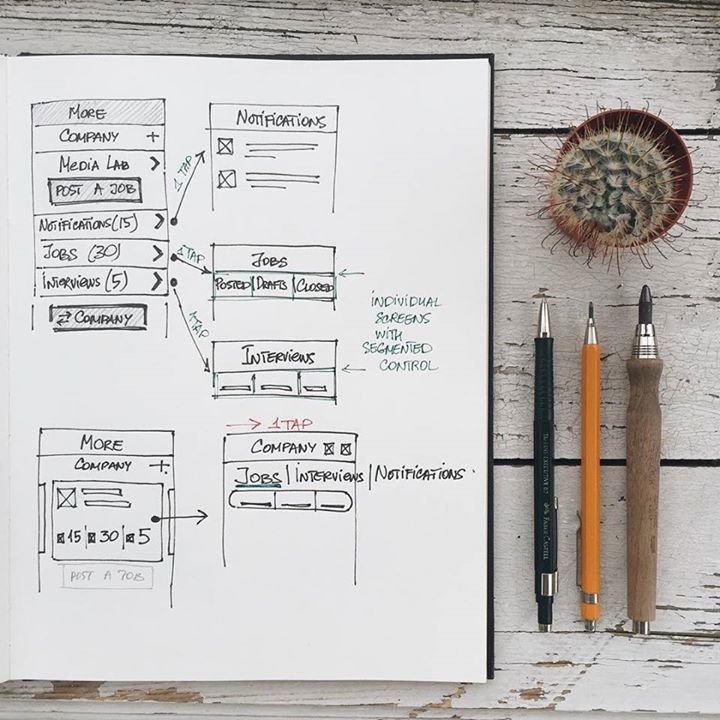
Here in Tubik, we support the workflow in which all the basic navigation issues, such as layout, transitions, elements placement, and functionality, are set in the early phase of UX wireframing and then checked with the simple prototype to make sure all the important operations and options are clear for users. Neglecting this essential aspect sets high risks that all the other effort on design can be just wasted, so it’s much more user- and client-friendly to start with the basics.
Menu
Menu is one of the core navigation elements. It is a graphical control that presents the options of interactions with the interface. Basically, it can be the list of commands – in this case, options will be presented with verbs marking possible actions like, for example, “save”, “delete”, “buy”, “send” etc. The menu can also present the categories along which the content is organized in the given interface, and this can be the high time for using nouns marking them.
Menus can have different locations in the interface (side menus, header menus, footer menus, etc.) and different ways of appearance and interaction (drop-down menus, drop-up menus, sliding menus, etc.) Any solution, which designer makes about menu functionality, appearance, and placement in general layout, should be based on thoughtful user research, analyzing not only potential wishes and expectations of the target audience but also their tech literacy and possible environments in which the digital product could be used. The well-designed menu can significantly speed up the process of achieving goals and satisfying needs that lay a solid foundation for positive user experience.
Blog App
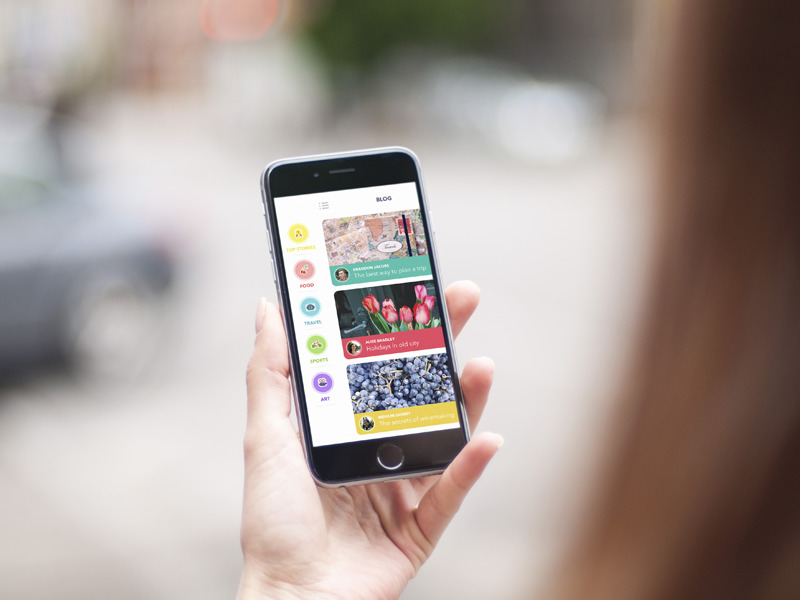
Here is an example of a mobile blogging app interface that features a left-side menu presenting the categories of content. The copy describing positions in the menu is supported with icons presenting recognizable visual mark for the category.
Moneywise App
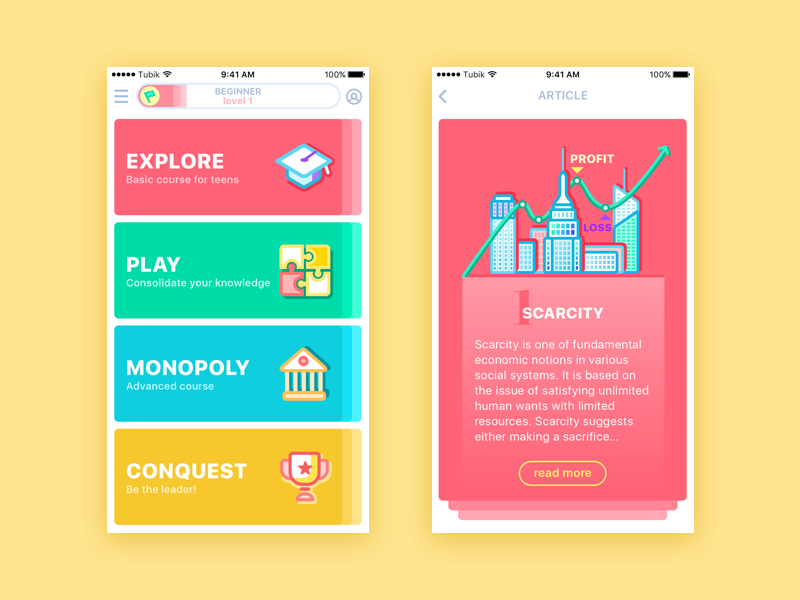
The presented app UI concept shows the type menu applying the effective technique of color marking: when users move to a particular category, the specific background color is used for all the content in it, which forms strong associations and quick perception of the nature and theme of data the user sees.
CTA
Behind the widely used abbreviation CTA, designers and content creators mean a call to action. This is actually the word or phrase that stimulates users to interact with a product in a way and for the aim it is designed for. CTA elements are the interactive controls that enable users to do the action they are called to. Typical types of such interactive elements in the layout are buttons, tabs, or links.
In the interfaces of all kinds, CTA elements are the core factor of effective interaction with the product, which plays a crucial role in usability and navigability. When all the path of interaction and transitions is built clearly for users but CTA element is not thought-out, placed or designed well, users can get confused and will need to take additional effort trying to achieve their goals. That sets the high risk for poor conversion rates and general user experience. That’s why this navigation element should draw particularly deep designers’ attention. In any interface, it should be one of the most prominent and quickly noticeable parts to inform users how the product can be helpful or useful for them.
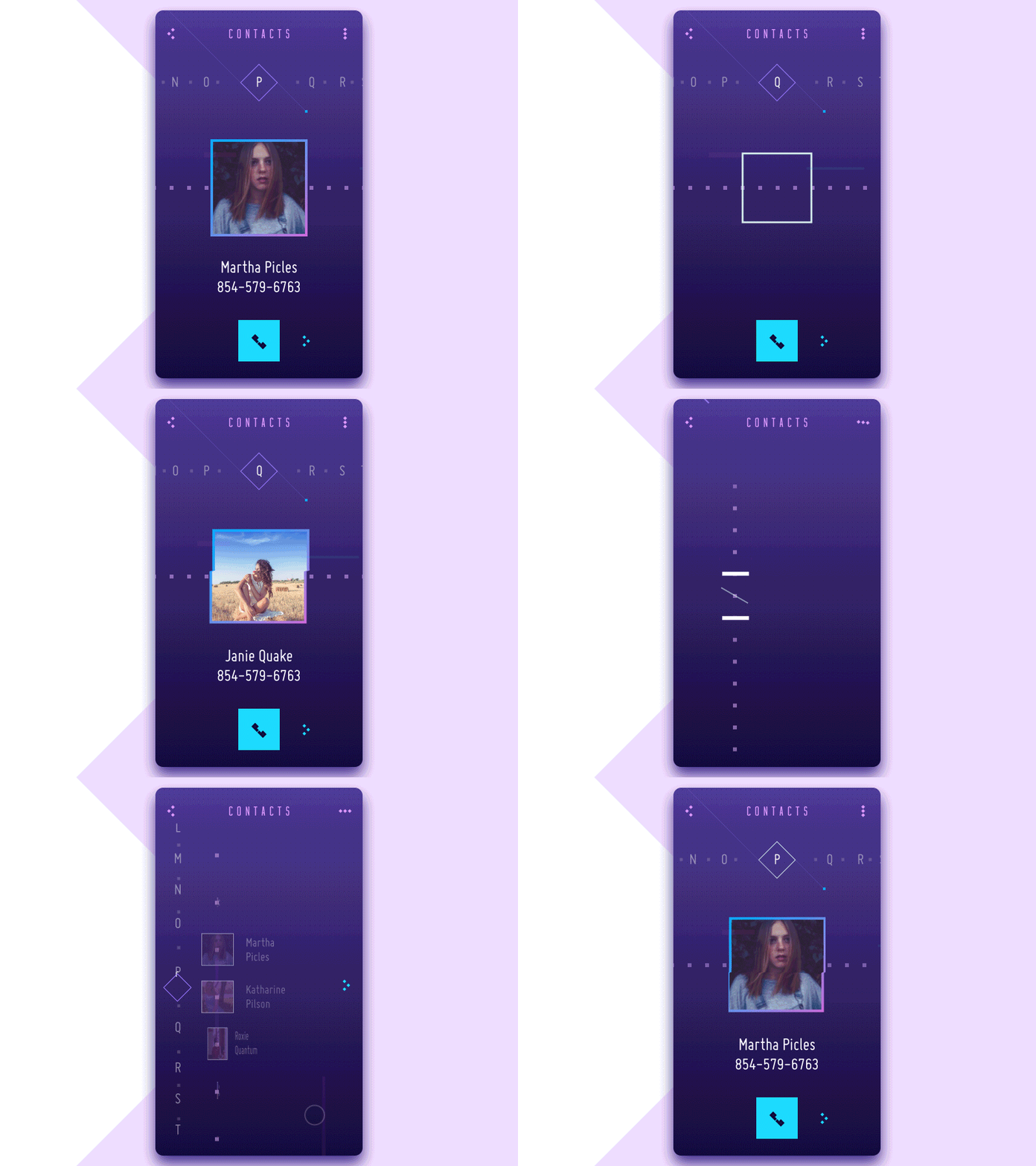
Contact List Concept
As we mentioned in the article with tips on copy content in UI, some call-to-action elements may be represented with icons that don’t require copy using widely and instantly recognized images such as a telephone receiver for making a phone call or the envelope for opening received mail. The app interface presented above shows this case: the button with a receiver is the most prominent interactive element on the screen navigating the user to achieving their goals with the app quickly, and it doesn’t need the copy to let users understand what action can be done with it.
However, when the image of an icon is not obvious or can be misleading, it is more effective to use the double scheme, where the copy supports the icon, button, or link.
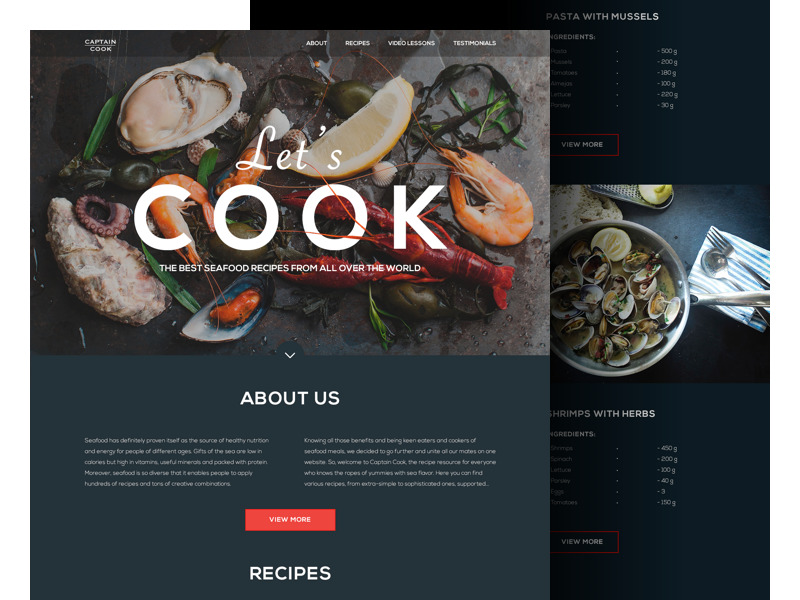
Landing Page on Seafood Cooking
The example above features the landing page for a web platform devoted to cooking seafood. The page’s headline serves as a call to action and immediately sets the theme through both verbal and visual cues. Still, this call to action is not interactive. The active CTA elements are clickable buttons informing users that after clicking they can see more information on the particular topic or recipe. The bright color enhances the visual hierarchy on the page and draws users’ attention to the key interactive zone.
Bar
Bar is a section of the user interface with clickable elements enabling the user to quickly take some core steps of interaction with the product, or it can also inform the user on the current stage of the process. Among the basic types of bars, we could mention:
Tab bar: in mobile applications, it appears at the bottom of an app screen and provides the ability to quickly switch between different sections of an app.
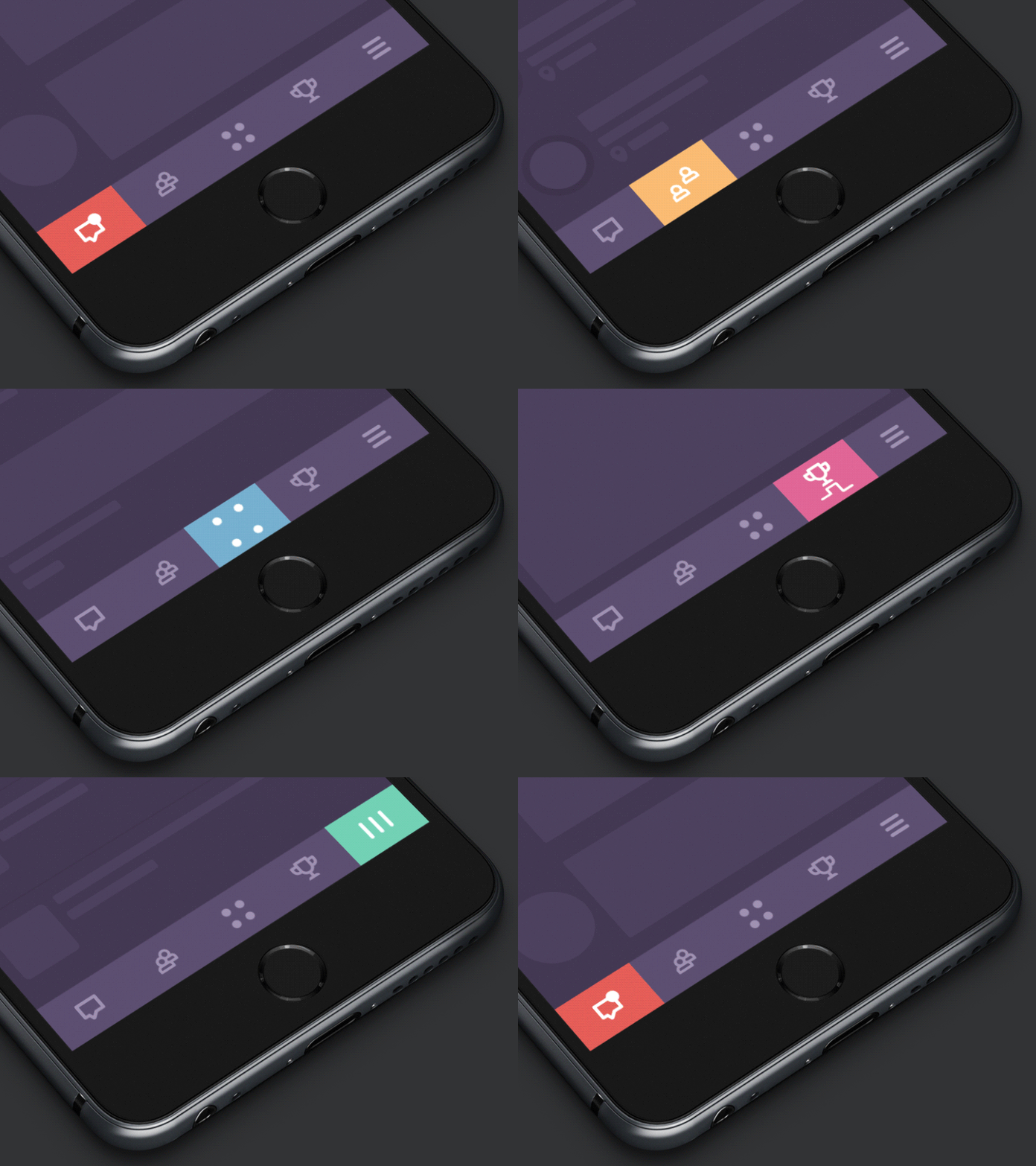
Tab Bar Interactions
Loading bar: the control informing the user on the current stage of action when the process is in the active stage, and the user can see the flow via timing or percentage shown in progress.
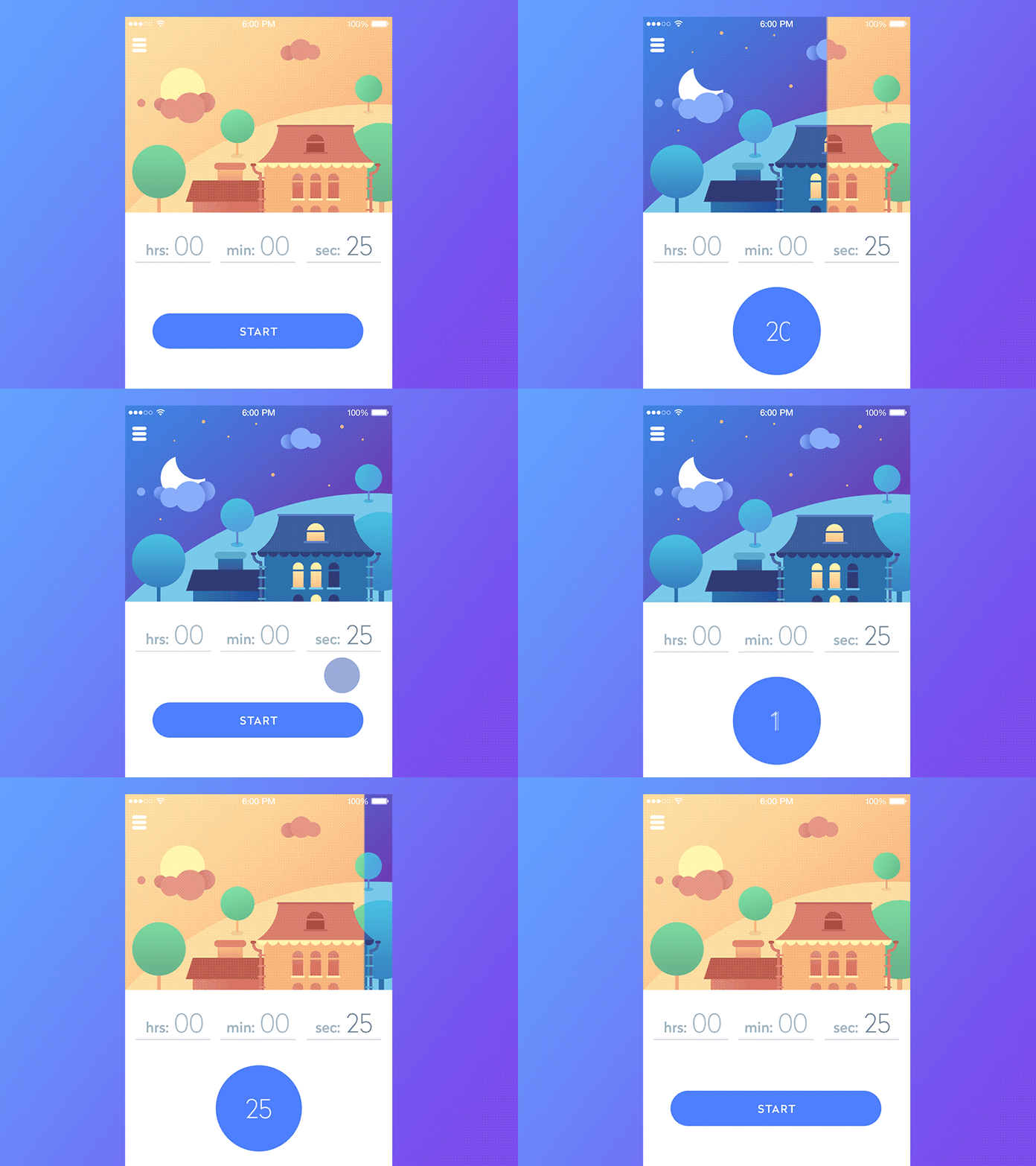
Timeline App
Progress bar: provides feedback on the result of the current process so far, for example, showing how much of the planned activity has been done.
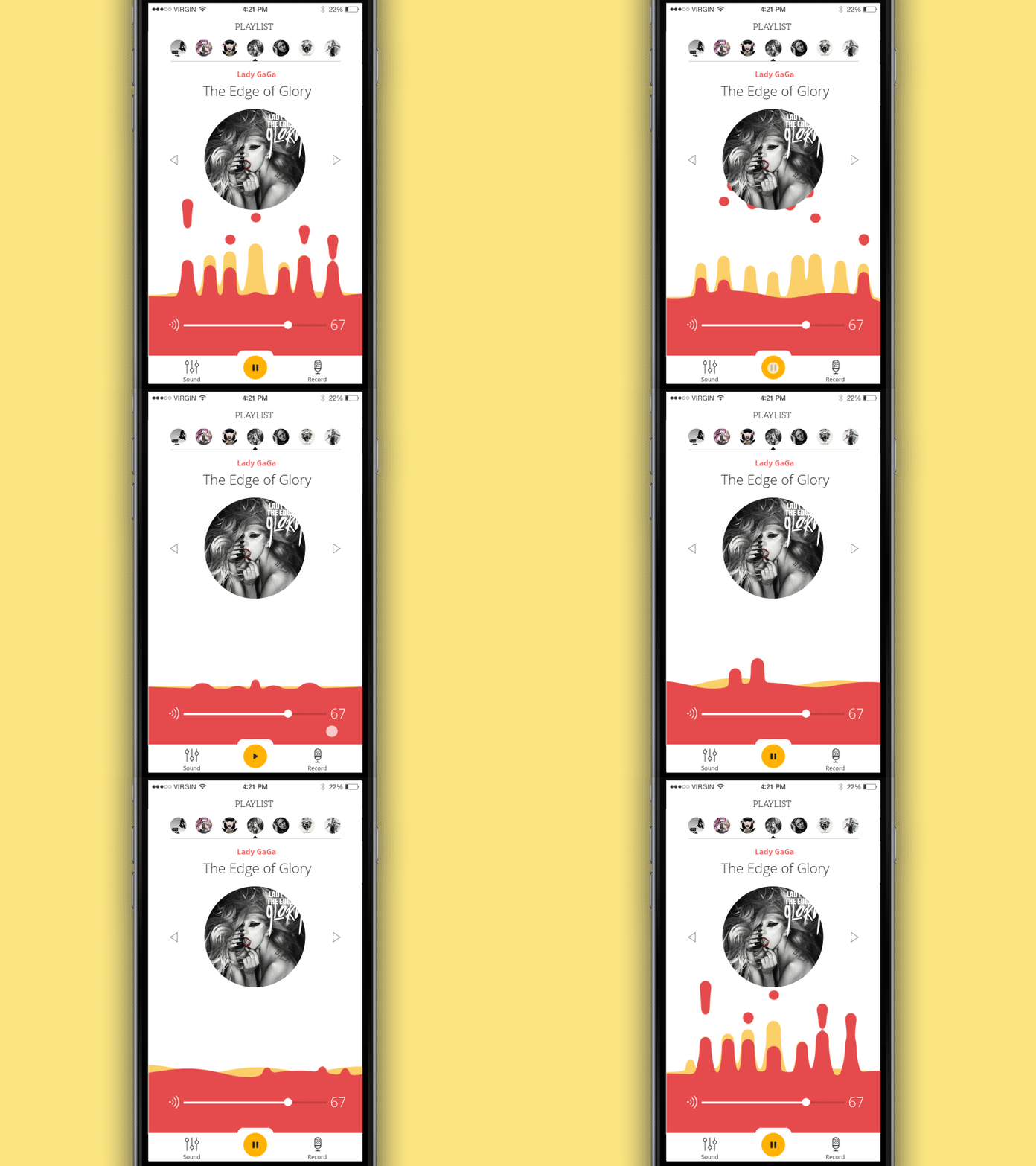
Juicy Player
Button
A button is, perhaps, one of the most popular elements of any interface. A button is the element that enables a user to get the appropriate interactive feedback from the system along with a particular command. Generally speaking, a button is a control with which the user directly communicates to the digital product and sends the necessary command to achieve a particular goal, like, let’s say, send the email, buy a product, download the data, turn on the player, and tons of other possible actions. One of the reasons why buttons are so popular and user-friendly is that they efficiently imitate interaction with objects in the physical world.
Modern UI buttons exhibit considerable variety and can serve many purposes. Typical and frequently used buttons that present an interactive zone, usually clearly marked out for visibility and having a particular geometric shape, and often supported with the copy explaining what action will be fulfilled via this button. Designers usually apply considerable time and effort to creating effective and noticeable buttons that are harmoniously added into the general stylistic concept but are contrast enough to stand out in the layout.
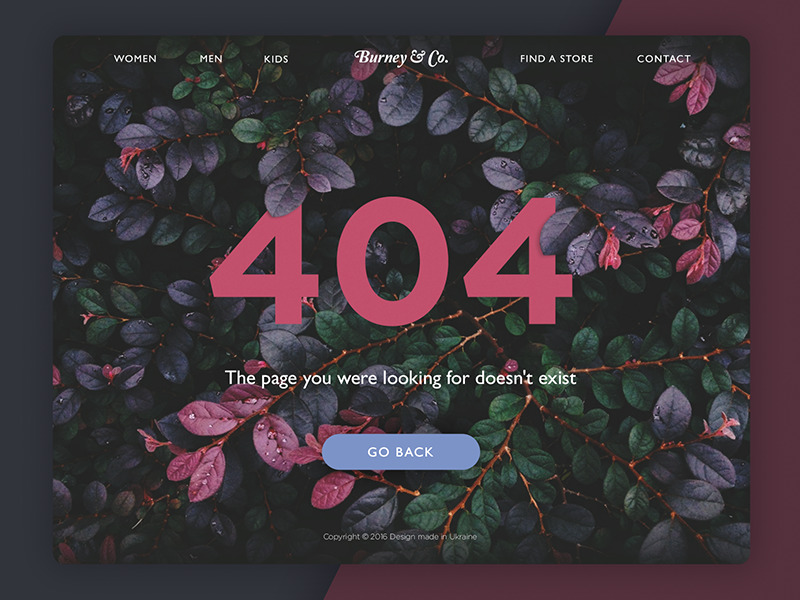
Besides, we could also mention several types of buttons with additional functionality, widely used in mobile and web interfaces.
Hamburger button: the button hiding the menu: clicking or tapping it, the user sees the menu expand. It is called so as its form consisting of three horizontal lines looks like typical bread-meat-bread hamburger. Nowadays, it is a typical element of interaction, still highly debatable due to the number of pros and cons.
Most users who visit and use websites on a regular basis know that this button hides the core categories of data, so this trick does not need additional explanations and prompts. Hamburger menus free up space, making the interface more minimalist and airy, and allow for significant savings in space for other important layout elements. This design technique also provides additional benefits for responsive and adaptive design, hiding navigation elements and making the interface look harmonious on different devices. Although hamburger menus remain a highly debated element of modern web and app design, they remain widely used. The arguments against the hamburger menu are that this design element can be confusing for people who do not use websites regularly and may be misled by the sign, which is highly abstract. So, the decision about applying the hamburger button should be made after user research and definition of the target audience’s abilities and needs.
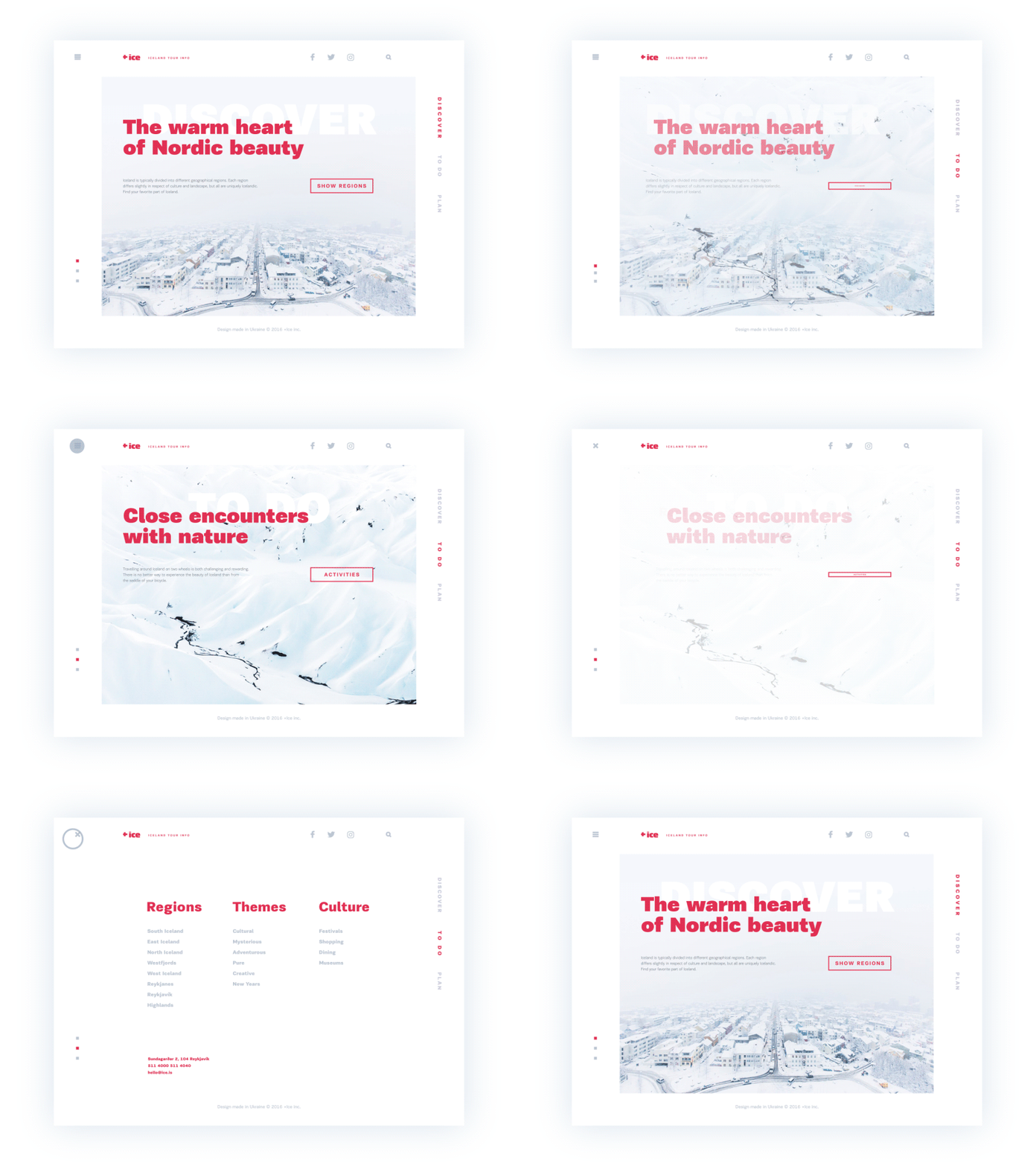
Ice Website
The presented website concept uses a hamburger button to hide the menu and supports the overall minimalist approach to the layout’s visual performance.
Plus button: the button that being clicked or tapped presents the ability to add new content, be it a new contact, post, note, position in the list – anything user could do as the basic action with the digital product. Sometimes, tapping this button, users are directly transferred to the modal window of creating content, in other cases, there is also a medium stage when they are given additional option to choose from and make adding the particular piece of data more focused.
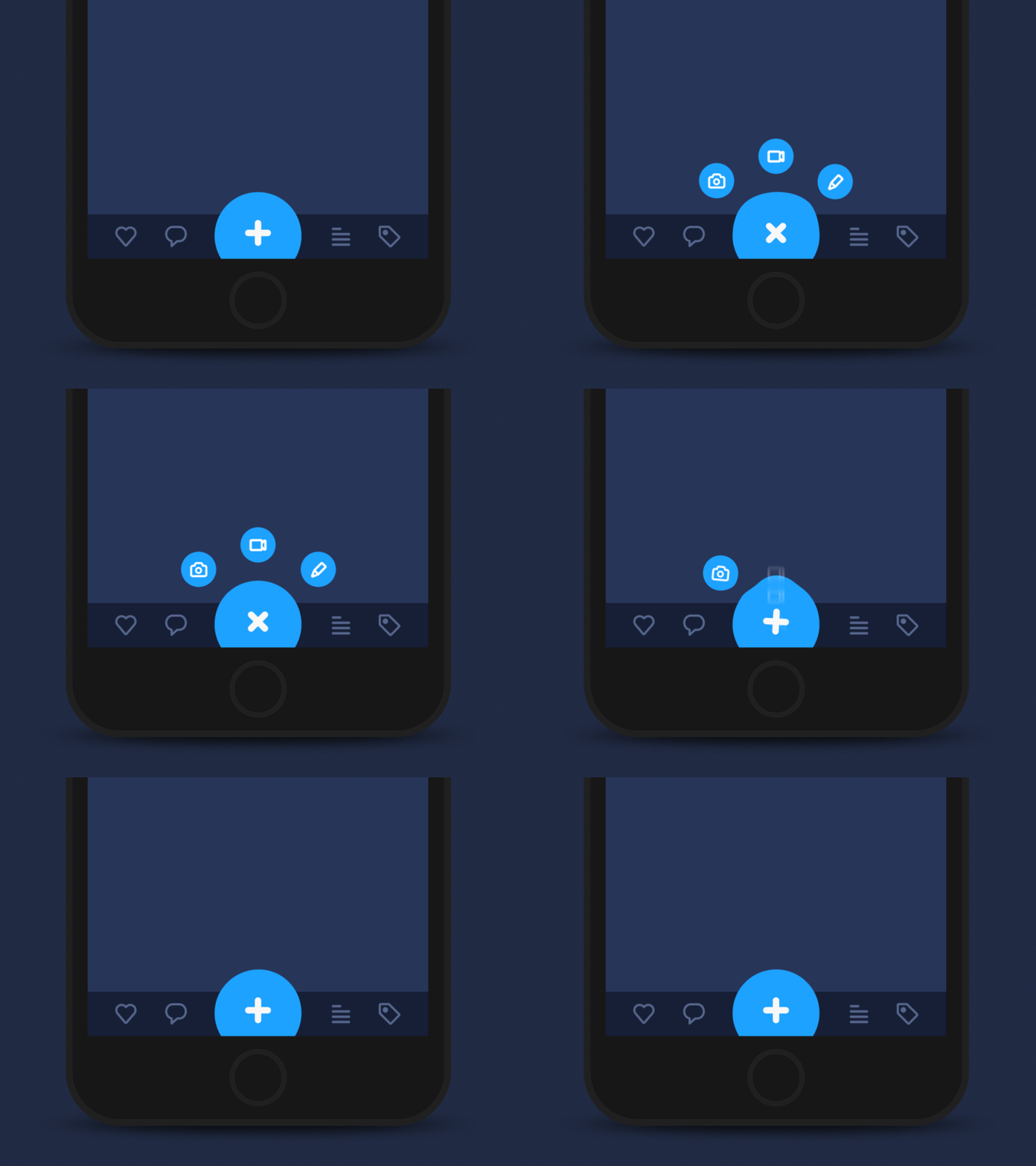
Button Animation
Here is the concept: the plus button first lets the user choose the type of content to add (image, video, text), and only then navigates to the screen where it can be done. This practice takes seconds and still makes the experience more user-friendly as designers can present users with modified options for adding content for every particular case.
Share button: the button enabling a user to share the content or achievement directly to social networking accounts. In the vast majority of cases, it is presented with icons that present a brand sign of particular social networks and are easily recognizable.
Switch
Switch is a control that enables users to switch the option on or off. Again, it is applied with a high level of efficiency and popularity in the modern interface because it presents the direct imitation of switches people are accustomed to in real life. The important point of consideration here is that states of the switch should be visibly clear and brightly different so that user could avoid applying effort to understand if the option is active or not. Various types of contrast and subtle animation can solve the problem, making the experience simpler and more user-friendly.
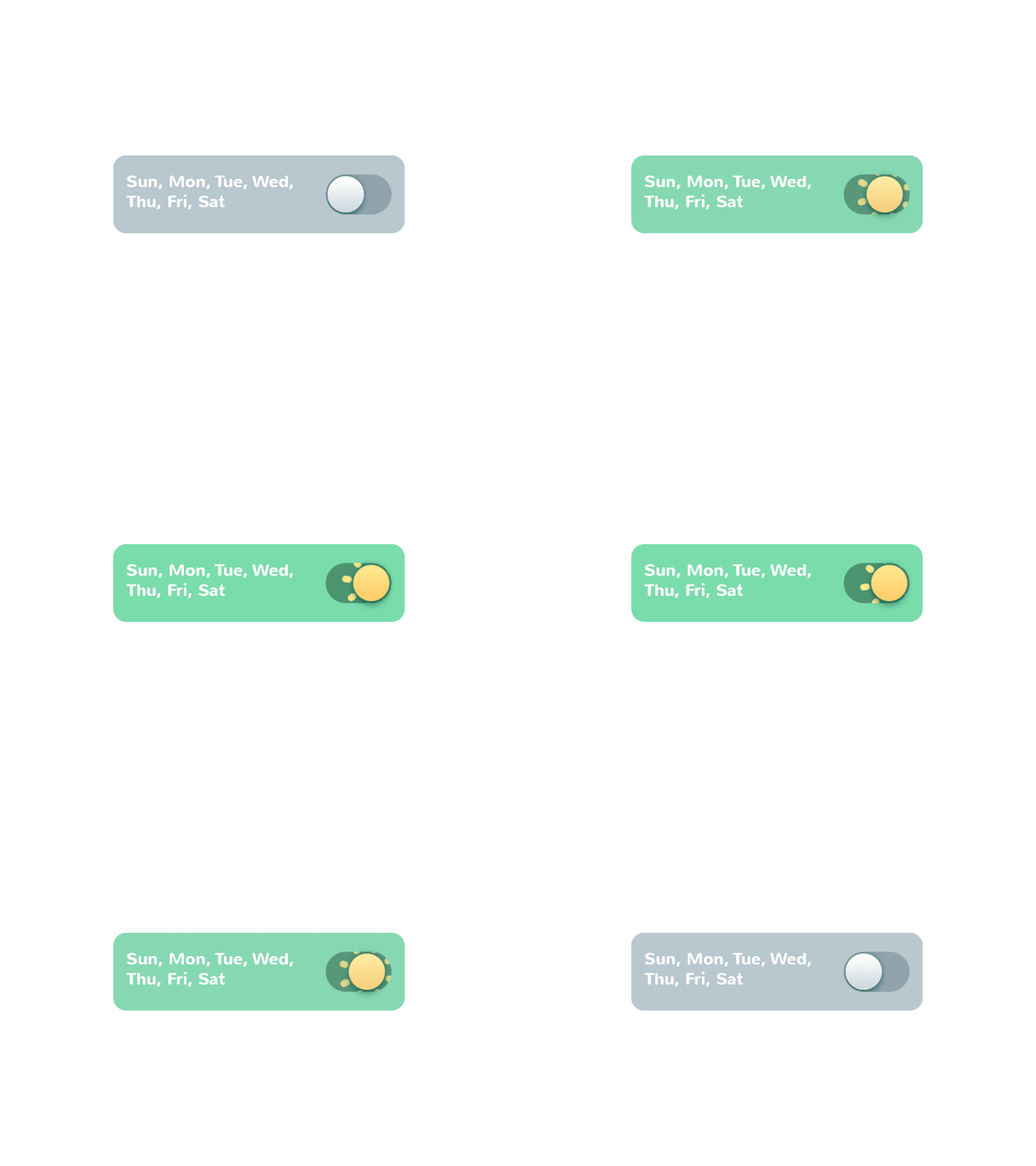
Switch for Toonie Alarm
Here is the switch turning on and off the alarm in Toonie app. Animation makes the interaction smooth and natural, while changed color of the tab and the toggle transforming into spinning sun let users instantly understand whether the alarm is active.
Picker
As it becomes clear from its name, the picker allows users to pick the point from the row of options. It usually includes one or more scrollable lists of distinct values, such as hours, minutes, dates, measurements, or currencies. By scrolling the list, users select and set the required value. This type of interactive element is widely used in the interfaces that have the functionality of setting time and dates.
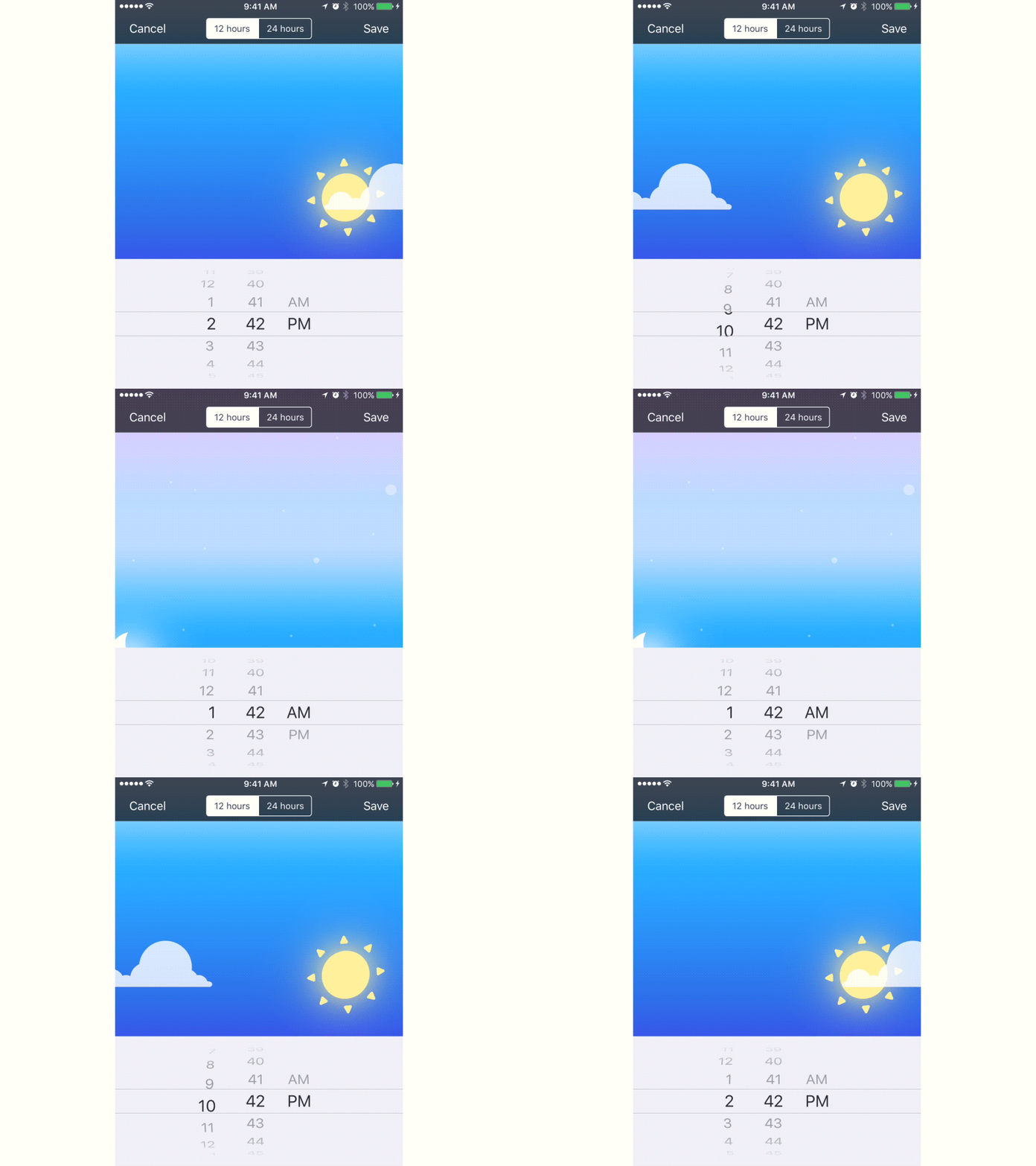
Time Picker for Toonie Alarm
Checkbox
A checkbox is a graphical UI element that is used to mark a particular piece of content, usually setting the choice for the binary options. It is another element setting the bridge with the real world as it looks really similar to the process of filling in tests, questionnaires and other stuff of this kind when you put a tick or color the box to mark the option. Checkboxes and switches can be found in any type of user interface, especially in the sections of user, screen, or page settings. Also, checkboxes present a common part of navigation in apps and websites with functionality of task managers, to-do lists, time trackers, and the like.
Here’s the example of the design concept for the mobile to-do app for complex tasks. Tapping the checkbox, users mark the task as done, and it automatically gets faded, the copy is colored differently, and the font gets bolder to support the contrast of this task with the one that is still in progress.
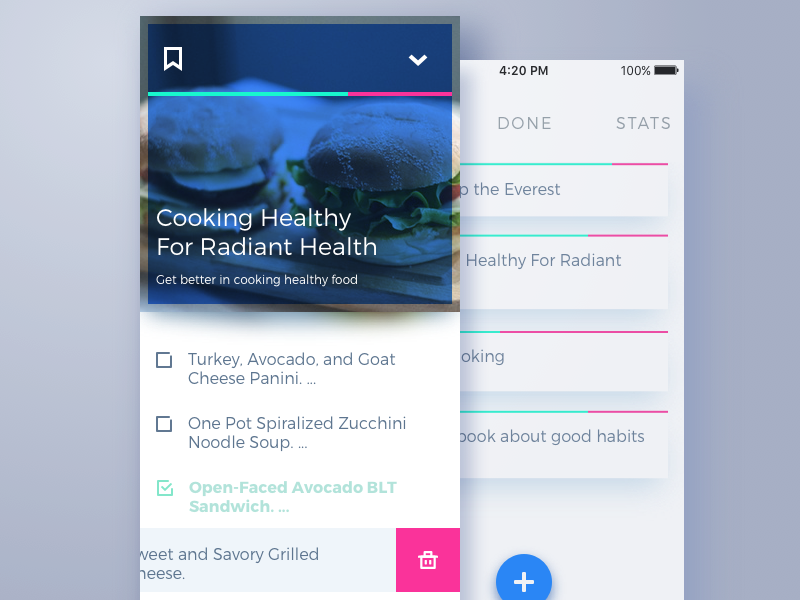
To-Do App
Today’s glossary set is ready for those who need it, and we will continue this practice soon. Don’t miss the new sets – the next one will continue the issues of navigation with deeper insights into types of menus and buttons, tags, breadcrumbs, and icons. New definitions are coming soon!
Originally written for Tubik Blog
Useful Articles
Here’s a bunch of articles to dive deeper into the theme of usability and user experience design.
5 Basic Types of Images in Web Design
The Anatomy of a Web Page: Basic Elements
6 Elements of Efficient Company Website Design
UX Practices on Product Page Design
How to Design Effective Search
Web Design: 17 Basic Types of Web Pages
Guide to 6 Effective Types of Web Animation
Directional Cues in User Interfaces
 https://design4users.com/ux-design-glossary-interface-navigation/
2026-01-12
© by
Marina Yalanska
,
https://design4users.com/ux-design-glossary-interface-navigation/
2026-01-12
© by
Marina Yalanska
,
- English
- Ukrainian